A salon chart of accounts (COA) is the organized master list of every ledger account your business uses to record money coming in, money going out, and everything you own or owe. Without a salon-specific version, your P&L becomes a jumble of miscategorized transactions that makes it nearly impossible to know whether your color services are actually profitable or whether your retail markup is covering product costs.
Download your salon COA template in the format that fits your workflow:
- QuickBooks Online (CSV import): Use the comma-separated CSV file. Go to Settings > Chart of Accounts > Import, upload the file, and map columns to account name, type, and detail type.
- QuickBooks Desktop (IIF or CSV): Use the IIF version if your Desktop edition supports it; otherwise use CSV and import via Lists > Chart of Accounts > Import.
- Excel (.xlsx): Best for reviewing, customizing, and printing before you import anywhere.
- Plain CSV: Works with Xero, Wave, and most generic accounting platforms.
Before you import anything, back up your company file. A bad import can duplicate or overwrite existing accounts, and a backup takes thirty seconds.
Key Takeaways
A properly structured salon chart of accounts, with separated revenue, COGS, and expense accounts, is the foundation every profitable salon P&L is built on.
| Point | Details |
|---|---|
| Separate revenue streams | Keep service revenue, retail sales, and booth rental income in distinct accounts to produce accurate performance reports. |
| COGS needs two lines | Track backbar COGS and retail product cost separately so you can calculate true service and retail margins independently. |
| Gift cards are liabilities | Record gift card and prepaid package sales as liabilities until redeemed; premature revenue recognition overstates income. |
| Hire when reports break down | If your P&L cannot tell you which services are profitable or commissions are disputed, a bookkeeper pays for itself quickly. |
| Lumaripro automates the rest | Lumaripro connects your QuickBooks COA to live dashboards, commission tracking, and overspending alerts built for salons. |
Table of Contents
- What does the salon chart of accounts template include?
- What accounts should every salon include?
- How do you handle booth renters, commissions, and gift cards?
- How do you import your COA into QuickBooks?
- What naming conventions and best practices keep your COA clean?
- How long does COA setup take, and when should you hire help?
- What mistakes do salon owners make with their COA?
- How Lumaripro turns your COA into live dashboards
- A note from the people who built this template
- Lumaripro gives you a COA that works from day one
- Sources
What does the salon chart of accounts template include?
The downloadable template is built around the five standard account types, populated with salon-specific line items you would otherwise have to build from scratch. FastTrac Consulting offers a QuickBooks-oriented COA tailored specifically to hair and beauty businesses, and the structure below mirrors that approach while adding booth rental and retail COGS detail.
| Account Number | Account Name | Type | Detail Type |
|---|---|---|---|
| — | Checking — Operating | Asset | Checking |
| — | Savings — Reserve | Asset | Savings |
| 1050 | POS/Merchant Clearing | Asset | Other Current Asset |
| 1200 | Retail Inventory | Asset | Inventory |
| — | Accounts Payable | Liability | Accounts Payable |
| 2100 | Gift Card Liability | Liability | Other Current Liability |
| — | Prepaid Package Liability | Liability | Other Current Liability |
| — | Owner’s Equity | Equity | Owner’s Equity |
| — | Owner’s Draw | Equity | Owner’s Draw |
| 4000 | Hair Services — Cuts | Income | Service/Fee Income |
| 4005 | Hair Services — Color | Income | Service/Fee Income |
| 4010 | Hair Services — Chemical | Income | Service/Fee Income |
| — | Nail Services | Income | Service/Fee Income |
| — | Skin/Esthetics Services | Income | Service/Fee Income |
| 4040 | Retail Sales | Income | Sales of Product Income |
| 4050 | Booth Rental Income | Income | Rental Income |
| — | Memberships | Income | Service/Fee Income |
| 5000 | Backbar COGS | Cost of Goods Sold | Supplies & Materials |
| 5010 | Retail Product Cost | Cost of Goods Sold | Supplies & Materials |
| 5020 | Disposables & Laundry | Cost of Goods Sold | Supplies & Materials |
| 6000 | Payroll — Wages | Expense | Wages |
| 6010 | Payroll — Commissions | Expense | Wages |
| 6020 | Payroll Taxes | Expense | Payroll Tax Expenses |
| — | Rent | Expense | Rent or Lease |
| — | Utilities | Expense | Utilities |
| — | Software & Subscriptions | Expense | Other Business Expenses |
| — | Marketing & Advertising | Expense | Advertising/Promotional |
| — | Insurance | Expense | Insurance |
| — | Salon Supplies | Expense | Supplies |
| 6240 | Merchant Processing Fees | Expense | Bank Charges |
A few import notes worth knowing before you click upload:
- QuickBooks Online requires the “Detail Type” column to match its exact dropdown values. If the import throws an error, check that column first.
- If you use QuickBooks classes or locations (for stylists or multiple stations), set those up after the COA import, not before.
- Test the import in a QuickBooks sample company before touching your live file.
- Tax agency accounts (sales tax payable) are created automatically by QuickBooks when you enable sales tax. Do not import a duplicate.
What accounts should every salon include?
According to industry guidance, a salon COA should separate service income by major category, keep retail sales distinct from services, and include a dedicated account for booth rental income. That separation is not just tidy bookkeeping.
Industry benchmarks show service revenue typically represents 70–85% of total salon revenue, with retail at 8–15%. Those ratios tell you how to weight your revenue accounts and where to focus margin analysis.
Revenue accounts (4000–4999) should break down by the service groups your POS already tracks: cuts, color, chemical services, nails, esthetics, and any specialty services you offer. Memberships and booth rental income get their own accounts because they behave differently from service revenue and need to stay separate for tax and reporting purposes.
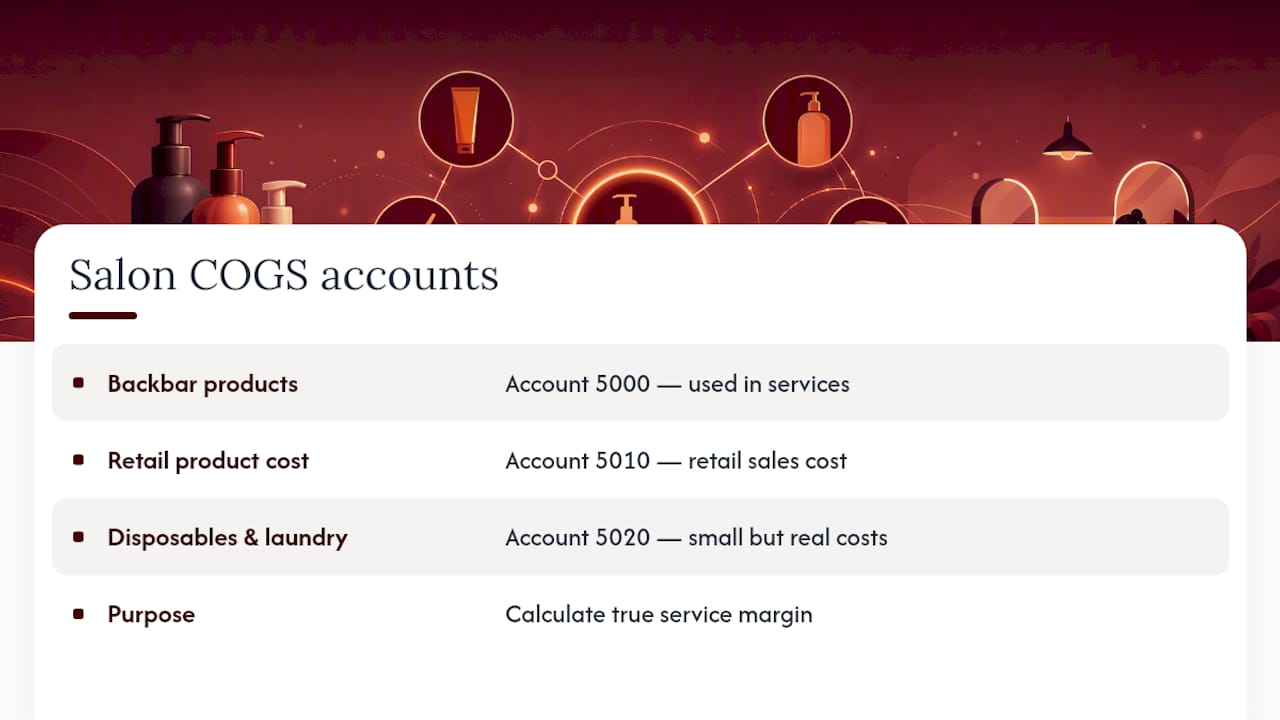
COGS accounts (5000–5999) are where most salons underinvest in detail. Backbar products used in services belong in account 5000, not mixed with retail product cost (5010). Keeping them separate lets you calculate a true service margin. Disposables and laundry (5020) are small but real costs that disappear into “supplies” at most salons, which inflates apparent service margins.
Operating expenses (6000–6999) cover the predictable monthly costs: payroll wages, commissions, payroll taxes, rent, utilities, software, marketing, insurance, and merchant fees.
Assets, liabilities, and equity round out the structure. The POS/Merchant Clearing account (1050) is one most salons skip and then regret. When Square or Stripe deposits a batch that covers three days of mixed retail and service sales, that clearing account is where you park the deposit until you split it into the right revenue accounts.
How do you handle booth renters, commissions, and gift cards?
These three areas cause more bookkeeping confusion in salons than everything else combined. Here is how to treat each one correctly.
Booth rental income vs. service revenue. If a stylist rents a chair and pays you a flat weekly or monthly fee, that income goes to account 4050 (Booth Rental Income), full stop. You are a landlord in that transaction, not a service provider. The stylist handles their own clients, their own product costs, and their own taxes. Mixing that rent into service revenue inflates your apparent service volume and distorts every performance metric tied to it. Proper separation is one of the clearest markers of a well-organized salon COA.

Commission accounting is more layered. The gross service sale hits your revenue account (say, 4005 for color). The commission you pay the stylist is a separate expense in account 6010. Tips are a passthrough: they come in from the client and go out to the stylist, so they should run through a dedicated clearing account rather than inflating your revenue. Payroll tax on commissions is real and often underestimated, so account 6020 needs to be funded consistently.
Retail inventory should be tracked as an asset (account 1200) when purchased, then moved to COGS (account 5010) when sold. Most small salons use periodic inventory, which means counting product on hand monthly and adjusting COGS accordingly. Shrinkage and returns get recorded as adjustments to inventory, not as expenses, so your COGS reflects actual product consumed rather than product purchased.
Gift cards and prepaid packages are liabilities when sold, not income. The cash hits your checking account, but the revenue is not earned until the client redeems the service. Account 2100 (Gift Card Liability) holds the balance until redemption, at which point you debit the liability and credit the appropriate revenue account. Unredeemed breakage (gift cards that are never used) can be recognized as income after a reasonable period, but consult a CPA on the timing since state laws vary.
Pro Tip: Set up separate merchant clearing accounts for retail sales and service sales (e.g., 1050 for services, 1055 for retail). When your POS deposits a combined batch, split it at the clearing account level. This makes COGS matching straightforward and eliminates the guesswork of figuring out which portion of a deposit was product versus services.
How do you import your COA into QuickBooks?
QuickBooks is the default target for most salon COA templates because of its wide adoption and import tooling. The workflow below covers QuickBooks Online. Desktop users follow a similar path through the Lists menu.
QuickBooks Online import steps:
- Open your COA template in Excel and confirm the columns are: Name, Type, Detail Type, Description (optional). Delete any extra columns.
- Save as CSV (UTF-8 encoding).
- In QuickBooks Online, go to Settings (gear icon) > Chart of Accounts > Import.
- Upload the CSV and map your columns to QuickBooks fields on the next screen.
- Review the preview. Flag any accounts with mismatched detail types before confirming.
- Click Import. QuickBooks will report how many accounts were created and flag any errors.
After import, verify these five things:
- Every revenue account is set to Income, not Other Income. Other Income accounts appear below the operating line on your P&L, which skews your gross profit calculation.
- Merchant Processing Fees is set to Expense, not Cost of Goods Sold.
- Gift Card Liability and Prepaid Package Liability are set to Other Current Liability.
- Opening balances are entered for any asset or liability account that carries a real balance on your start date.
- Classes and locations are enabled under Settings > Advanced if you plan to track by stylist or location.
For non-QuickBooks platforms: Xero accepts CSV imports through Accounting > Chart of Accounts > Import. The column structure differs slightly (Xero uses “Account Code” instead of account number), so rename that column before uploading. Most other platforms follow a similar pattern.
POS systems like Square export sales-by-category reports that map directly to your revenue accounts. Connecting your Square for Beauty account to QuickBooks via the native integration automates that mapping and eliminates manual entry for daily sales.
What naming conventions and best practices keep your COA clean?
The most common COA problem is not missing accounts. It is accounts that were named inconsistently six months ago and now produce reports nobody trusts. A few rules prevent that.
Number your accounts in ranges that leave room to grow. Use 4000–4099 for hair services, 4100–4199 for nail services, 4200–4299 for skin services. When you add a new service category, it slots in without disrupting the existing structure.
Name accounts with a prefix and a descriptor: 4000 Hair Services — Cuts, 4005 Hair Services — Color, 4010 Hair Services — Chemical. QuickBooks truncates long names in some report views, so keep the meaningful part in the first 25 characters.
Use classes for stylists, locations for branches. Classes in QuickBooks let you tag every transaction to a specific stylist without creating separate revenue accounts for each person. That is the right tool for stylist-level P&L. Locations are for physical branches. Never create a new account just to track a stylist’s sales — that path leads to a COA with 40 revenue accounts and reports that take an hour to interpret.
Reconcile monthly, not quarterly. Salon budgeting guides recommend keeping your budget, rolling forecast, P&L, and cash flow views distinct but connected. That only works if your books are reconciled and your COA is clean before you build the forecast. A quarterly reconciliation means three months of misclassified transactions to untangle.
Pro Tip: Run a P&L by class (stylist) every month alongside your standard P&L. If a stylist’s commission expense is rising faster than their service revenue, you will see it immediately. That is a conversation to have before it becomes a cash flow problem.
How long does COA setup take, and when should you hire help?
The honest answer depends on where you are starting from.
A clean import of the template into a new QuickBooks file with no existing transactions takes 1–3 hours, including verification steps. Full customization — adding your specific service categories, mapping POS accounts, entering opening balances, and running a test P&L — runs 4–12 hours for most salons. If you are cleaning up an existing file with a year or more of miscategorized transactions, budget 1–3 days, or hire someone.
A freelance bookkeeper or QuickBooks ProAdvisor typically charges $75–$150 per hour for COA setup and cleanup. A full initial setup with opening balances and a first reconciliation usually runs $300–$800 depending on complexity. That is a one-time cost that pays for itself the first time you pull a P&L that actually reflects your business.
Hire a bookkeeper when any of these apply:
- Your P&L shows service revenue but you cannot tell which services are profitable.
- Commission tracking is inconsistent and your stylists dispute their numbers.
- Retail inventory on your books does not match what is on your shelves.
- You have payroll tax complexity (multiple states, tipped employees, booth renters who may be misclassified).
- You are preparing for a loan, a lease renewal, or a sale of the business.
What mistakes do salon owners make with their COA?
Mixing booth rental income with service revenue is the most common and the most damaging. It inflates your apparent service volume and makes stylist performance data meaningless. Fix it by creating account 4050 (Booth Rental Income) and reclassifying all past booth rent deposits through a journal entry.
Expensing retail product purchases directly instead of routing them through inventory is the second most common error. When you buy $500 of retail product and expense it immediately, your COGS is overstated in that period and understated when you actually sell the product. Fix it by setting up account 1200 (Retail Inventory) and adjusting the prior entries. Run a trial balance before and after to confirm the correction.
Not separating tips from revenue creates bank reconciliation headaches and can cause payroll tax errors. Tips are not your income. They pass through your account to the stylist. A dedicated clearing account keeps them visible and out of your revenue totals.
Too many granular accounts is a real problem too. A salon with 15 separate expense accounts for different types of salon supplies is harder to manage than one with three well-named accounts. If an account has fewer than five transactions per year, roll it into a parent account.
Quick fixes you can do today:
- Run a trial balance in QuickBooks and look for accounts with unusually high or low balances.
- Check that every revenue account is typed as Income, not Other Income.
- Reconcile your merchant processing account and confirm the fees are in account 6240, not buried in bank charges.
- Reclassify any booth rent sitting in service revenue accounts.
How Lumaripro turns your COA into live dashboards
Setting up a COA is step one. Turning it into decisions is where most salon owners stall. Lumaripro connects directly to QuickBooks and your POS system to pull your COA data into real-time dashboards built for the way salons actually operate.
- Automated account mapping: Lumaripro reads your QuickBooks COA and maps service revenue, COGS, and commission accounts to pre-built salon P&L templates. No manual export-and-paste.
- Margin by service category: See your color service margin, nail service margin, and retail margin as live numbers, not month-old spreadsheet snapshots.
- Commission tracking: Stylist-level revenue and commission expense pulled directly from your QuickBooks classes, so disputes get resolved with data.
- Retail margin reports: Retail product cost (account 5010) versus retail sales (account 4040) displayed as a margin percentage, updated with every sync.
- Overspending alerts: When a category like merchant fees or salon supplies exceeds your budget threshold, Lumaripro flags it before it compounds.
The Lumaripro platform was built by people who have worked in the beauty industry, which means the account mappings, the dashboard layouts, and the coaching prompts reflect how salons actually make money, not how a generic accounting textbook says they should.
A note from the people who built this template
The COA structure in this guide came directly from the kinds of financial messes we have seen in real salons: color revenue buried in a single “services” account, booth rent inflating service numbers, retail product expensed at purchase and then wondered about when margins looked wrong.
The anxiety around setting up bookkeeping is real, and it is usually not about the numbers. It is about not knowing whether you are doing it right. This template gives you a structure that is already right for a salon. Customize the service categories to match your menu, add your specific software subscriptions, and you have a COA that will produce reports you can actually use.
If you get stuck, the template is a starting point, not a final answer. The accounts that matter most for your business are the ones tied to your biggest revenue categories and your highest costs.
Lumaripro gives you a COA that works from day one
Most salon owners spend weeks building a COA from scratch, then months fixing the parts that were wrong. Lumaripro cuts that path short. The platform comes with a pre-mapped salon COA, QuickBooks and POS integrations that keep it current, and an AI business companion trained on suite and salon economics that flags problems before they show up as surprises at month-end.

The difference between a COA sitting in a spreadsheet and one connected to live dashboards is the difference between knowing your numbers and guessing at them. Lumaripro gives independent beauty professionals the financial clarity that used to require a dedicated bookkeeper, at a fraction of the cost. See what the Lumaripro platform includes and start with a setup that is already built for your business.
Sources
- Quickbooks
- How to Budget for a Salon: A No-Nonsense Guide for Owners.
- The Ultimate Guide to Salon Accounting and Bookkeeping
- Beancount
- FastTrac Consulting
Recommended